• ×
    Information
    Need Windows 11 help?
    Check documents on compatibility, FAQs, upgrade information and available fixes.
    Windows 11 Support Center.
  • post a message
  • ×
    Information
    Need Windows 11 help?
    Check documents on compatibility, FAQs, upgrade information and available fixes.
    Windows 11 Support Center.
  • post a message
Guidelines
Here is the solution for Blue screen error 83C0000B on HP OfficeJet Pro 8010e, 9020e Printer Series: Click here to view.
Check some of the most frequent questions about Instant Ink: HP INSTANT INK, HP+ PLANS: INK AND TONER.


Check out our Black or Color Ink Not Printing, Other Print Quality Issues info about: Print quality and Cartridge Issues.
HP Recommended

I have used Paint to get my photo to the size I need; however, when I print to my HP ENVY 6458e the printout is at the huge 100%.  How do I reduce the printout size?

1 REPLY 1
HP Recommended

@arne_bue 


Welcome to the HP Community Forum.


Pixel size, that is, data density, is related to printing in the quality of the printed content.


The Scale of the print, that is, the "percent of 100%" of the size of the file, controls how that image looks on your paper.


Paint (mspaint) can print an image at the size you want using the "Scaling" option > Adjust to "some percentage of 100%".


If you don't know the Scale, that is, the percentage of 100%, calculate the answer based on the size of the print you want.


For example

Paper Size 4x6 inches


Photo "full size", Scaling = Fit to - produces an image (in Portrait) that fills the 4x6 inch paper as best can be done using the pixel / inch side of the original file / aspect ratio. 


Center Vertical and Horizontal as wanted.


If you wish the image to be printed at 2.5 inches tall (in Portrait), calculate 2.5 divided by 6

(Always use the larger side)

Print the image > Scaling > Adjust to 42% (rounded up from 41.66)

Paint will display the project print size on the paper in the preview


Original Image size 5.23 inches (longer side)

Needed Print Size = 2.5 inches tall (longer side)

Calculate 2.5 divided by 5.23 = 48% Print Size


Example

DragonFur_0-1677442648852.png


What else?


The task can be much easier --


What you do to get what you want depends on

  • The Operating System / version,
  • The application / software you use to open, view, configure, and submit the print job to the printer,
  • The choices available in the application / software
  • What you are trying to accomplish and the precision necessary to complete the task.


The following is relevant to Windows 10 / Windows 11


First,

If not already done, Install the Full Feature Software / full driver printer software

Video - Install Software

HP Envy 6055 | HP Envy Pro 6455 : Download & Install HP Full solution software on Win 10 Computer


Next

Select an application / software program to print your image file.


Examples


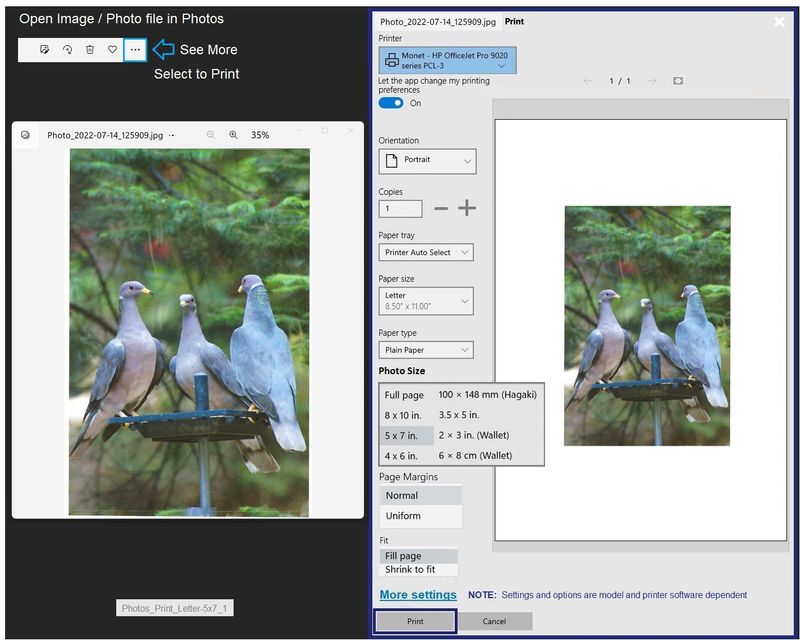
Example - (Microsoft) Photos - Print Size selection - Paper size = Letter / Print Size = 5x7 inches

Photos_Print_Letter-5x7_1Photos_Print_Letter-5x7_1


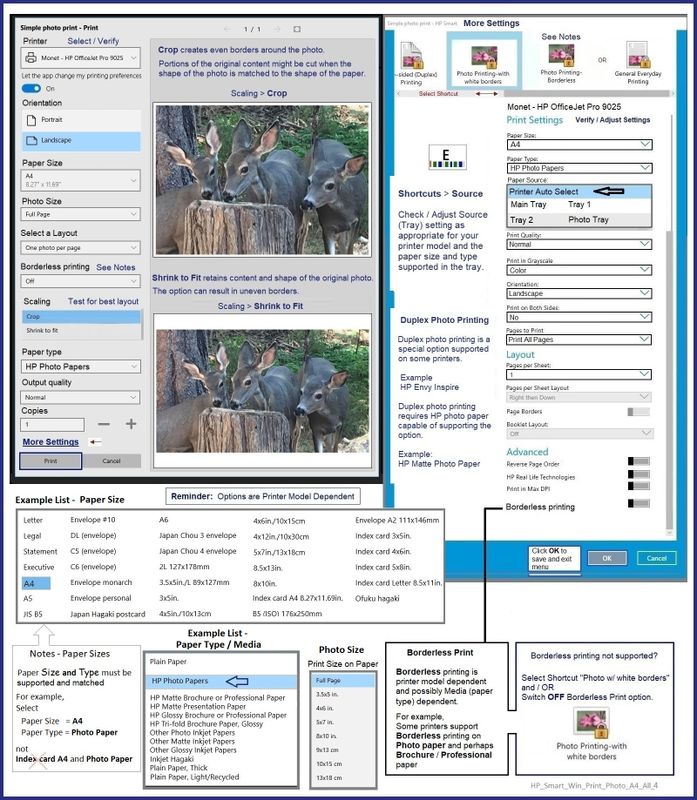
Example - HP Smart - Windows - HP Smart - Simple Photo Print - A4

Note that you can select the Paper Size and select a Photo Size (as available) for that paper.

HP_Smart_Win_Print_Photo_A4_All_4HP_Smart_Win_Print_Photo_A4_All_4


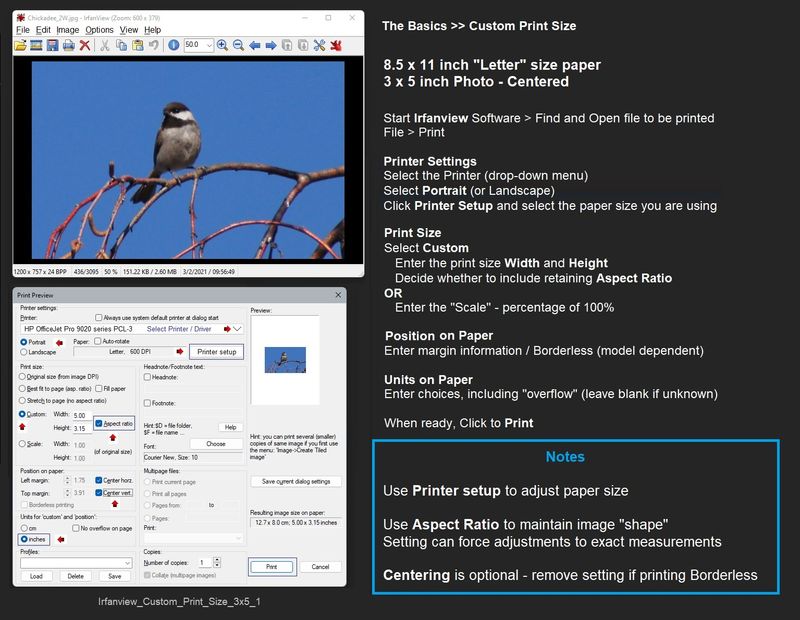
Example - Irfanview software - Custom Print size

Paper Size = Letter

Print Size = 3x5 inch photo, centered

Software can print a custom size print on your supported paper size and type.

Irfanview_Custom_Print_Size_3x5_1Irfanview_Custom_Print_Size_3x5_1


References / Resources


===================================

Irfanview > Brilliant Free Photo Viewing, Editing, and Print Software


 Irfanview provides an exceptional software experience that can be used for a variety of scan and print tasks, including the “Mirror” or horizontal flip function plus several other options not found elsewhere.


  • Create a Restore Point (optional, recommended)
  • Download the appropriate version (32bit or 64bit) of the program from the Website and install the program
  • Additional information at the website, including:  FAQ


NOTES

  • Both 32bit and 64bit versions for Windows are available.
  • Irfanview is also available as an Windows 10 Application from the Microsoft Store


For example,

Irfanview 64bit version – Information and Download

Software and All Plugins for 64bit version:  https://www.fosshub.com/IrfanView.html


Includes Plugin for creating Multiple-page PDF files for images (Poster or large paper printing)

Includes access (where available) to Scan with HP Twain > Adjust settings > Save


How to find Help within the Irfanview software

Once installed, open the software > tab Help


===================================


User Guide - HP ENVY 6400e All-in-One series


 Product Specifications for the HP ENVY 6458e All-in-One Printer (223R3A)


HP Printer Home Page - References and Resources

Learn about your Printer  - Solve Problems

“Things that are your printer”

When the website support page opens, Select (as available) a Category > Topic Subtopic

NOTE:  Content depends on device type and Operating System

Categories:  Alerts, Access to the Print and Scan Doctor (Windows), Warranty Check, HP Drivers / Software / Firmware Updates, How-to Videos, Bulletins/Notices, Lots of How-to Documents, Troubleshooting, Manuals > User Guides, Product Information (Specifications), Supplies, and more

Open

HP ENVY 6458e All-in-One Printer 


Thank you for participating in the HP Community --

People who own, use, and support HP devices.

Click Yes to say Thank You

Question / Concern Answered, Click "Accept as Solution"


Dragon-Fur

† The opinions expressed above are the personal opinions of the authors, not of HP. By using this site, you accept the <a href="https://www8.hp.com/us/en/terms-of-use.html" class="udrlinesmall">Terms of Use</a> and <a href="/t5/custom/page/page-id/hp.rulespage" class="udrlinesmall"> Rules of Participation</a>.