
-
×InformationNeed Windows 11 help?Check documents on compatibility, FAQs, upgrade information and available fixes.
Windows 11 Support Center. -
-
×InformationNeed Windows 11 help?Check documents on compatibility, FAQs, upgrade information and available fixes.
Windows 11 Support Center. -
- HP Community
- Printers
- Printing Errors or Lights & Stuck Print Jobs
- s/w will not install

Create an account on the HP Community to personalize your profile and ask a question
Your account also allows you to connect with HP support faster, access a personal dashboard to manage all of your devices in one place, view warranty information, case status and more.
Check some of the most frequent questions about Instant Ink: HP INSTANT INK, HP+ PLANS: INK AND TONER.
Check out our Black or Color Ink Not Printing, Other Print Quality Issues info about: Print quality and Cartridge Issues.

It has been a while since anyone has replied. Simply ask a new question if you would like to start the discussion again.

04-24-2020 12:07 PM
 HP Recommended
Product: hp envy 7640
Operating System: Microsoft Windows 10 (64-bit)
Have gone through all the troubleshooting process and the printer software and drivers will not install. I seem unable to even un-install the printer from list of programs to start all over again. Thank you!
Solved! Go to Solution.
1 ACCEPTED SOLUTION
Accepted Solutions


04-24-2020 01:18 PM
HP Recommended
Please right-click the Command Prompt dialog immediately after searching from CMD, from the shown picture,
From the shown picture, I can figure that the shown screen is after double-clicking the Command Prompt option already.


Click the Yes button to reply that the response was helpful or to say thanks.
If my post resolve your problem please mark it as an Accepted Solution 🙂
7 REPLIES 7
04-24-2020 12:22 PM - edited 05-14-2020 11:44 AM
HP Recommended
Hi,
Please let us know the exact error message shown when trying to install or uninstall the HP Software.
Assuming you experience below error, follow the steps below, else, be sure to provide some more installation of the problem.

Solution
Note: if you have an HP Computer, follow the steps within the HP PC Solution section and do not follow any further steps within this section
- From the search bar type CMD, right-click on Command Prompt and select Run as Administrator.
- Copy the following command, then right-click the Command Prompt dialog and select Paste, then press Enter till any command completes
- processing:
takeown /f %windir%\System32\DriverStore\FileRepository /r /d y
Note: This provides your user full permissions to the File Repository system folder and deletes all HP's folders from within the system folder
icacls "%windir%\System32\DriverStore\FileRepository" /grant %username%:(OI)(CI)F /T
for /d %G in ("%windir%\System32\DriverStore\FileRepository\hpwia*") do rd /s /q "%~G"
takeown /f %windir%\System32\DriverStore\FileRepository /A /r /d y
Note: if you receive any Syntax error and your operating system language is in a different language than English, review the following Takeown command documentation from Microsoft for your language and modify the syntax accordingly. - From the Start menu click the Gear icon, select Apps and uninstall the HP Basic Device Software for your printer.
- Download and install the latest HP Basic Device Software for your printer as necessary:
https://support.hp.com/us-en/drivers/printers
HP PC Solution
- From the search bar type CMD, right-click on Command Prompt and select Run as Administrator.
- Copy the following command, then right-click the Command Prompt dialog and select Paste, then press Enter till any command completes processing:
takeown /f %windir%\System32\DriverStore\FileRepository /r /d y
Note: This provides your user full permissions to the File Repository system folder
icacls "%windir%\System32\DriverStore\FileRepository" /grant %username%:(OI)(CI)F /T
takeown /f %windir%\System32\DriverStore\FileRepository /A /r /d y
Note: if you receive any Syntax error and your operating system language is in a different language than English, review the following Takeown command documentation from Microsoft for your language and modify the syntax accordingly. - From the Start menu click the Gear icon, select Apps and uninstall the HP Basic Device Software for your printer and evaluate the error message, then close the Uninstall dialog.
Right-click the Start button and select Run, then paste the following path and press OK:
%windir%\System32\DriverStore\FileRepository
- Locate and delete only the HP Folder listed in the error message.
Example: following below error message, delete the hpwia_pw477dw.inf_amd64_efa093991b821954 folder as an example: - From the Start menu click the Gear icon, select Apps and uninstall the HP Basic Device Software for your printer.
- Download and install the latest HP Basic Device Software for your printer as necessary:
https://support.hp.com/us-en/drivers/printers
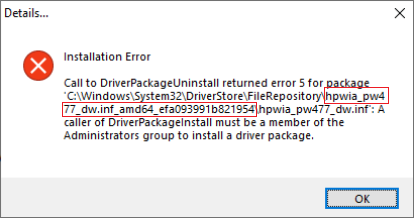
Click the Yes button to reply that the response was helpful or to say thanks.
If my post resolve your problem please mark it as an Accepted Solution 🙂

04-24-2020 12:52 PM
HP Recommended
Yes, this is the same error shown in my previous post as I suspected it to be.
Please follow the steps in my previous post to resolve it and uninstall the software first, then reinstall the HP Software.
Shlomi
Click the Yes button to reply that the response was helpful or to say thanks.
If my post resolve your problem please mark it as an Accepted Solution 🙂

04-24-2020 01:18 PM
HP Recommended
Please right-click the Command Prompt dialog immediately after searching from CMD, from the shown picture,
From the shown picture, I can figure that the shown screen is after double-clicking the Command Prompt option already.
Click the Yes button to reply that the response was helpful or to say thanks.
If my post resolve your problem please mark it as an Accepted Solution 🙂
04-24-2020 01:41 PM
HP Recommended
You're much welcome @runnerrider61,
Great to see your printer is now up and running again.
Shlomi
Click the Yes button to reply that the response was helpful or to say thanks.
If my post resolve your problem please mark it as an Accepted Solution 🙂

Be alert for scammers posting fake support phone numbers and/or email addresses on the community.
If you think you have received a fake HP Support message, please report it to us by clicking on "Flag Post".
† The opinions expressed above are the personal opinions of the authors, not of HP. By using this site, you accept the Terms of Use and Rules of Participation.


Didn't find what you were looking for?
Ask the community
† The opinions expressed above are the personal opinions of the authors, not of HP. By using this site, you accept the <a href="https://www8.hp.com/us/en/terms-of-use.html" class="udrlinesmall">Terms of Use</a> and <a href="/t5/custom/page/page-id/hp.rulespage" class="udrlinesmall"> Rules of Participation</a>.