
-
×InformationNeed Windows 11 help?Check documents on compatibility, FAQs, upgrade information and available fixes.
Windows 11 Support Center. -
-
×InformationNeed Windows 11 help?Check documents on compatibility, FAQs, upgrade information and available fixes.
Windows 11 Support Center. -
- HP Community
- Printers
- Scanning, Faxing, and Copying
- Envy 7640 Two Sided Scanning

Create an account on the HP Community to personalize your profile and ask a question
Your account also allows you to connect with HP support faster, access a personal dashboard to manage all of your devices in one place, view warranty information, case status and more.
Common problems HP Solution Center not working : Adobe Flash Player Error and Unable to scan
We would like to share some of the most frequently asked questions about HP Solution Center not working : Adobe Flash Player Error and Unable to Scan.

It has been a while since anyone has replied. Simply ask a new question if you would like to start the discussion again.

07-02-2020 08:34 AM
 HP Recommended
Product: ENVY 7640
Operating System: Microsoft Windows 10 (64-bit)
I use to be able to do two sided scanning with my ENVY 7640 with the HP SCAN application, but now I have a new computer and I can't find that application anywhere. The latest printer driver and software I downloaded from HP does not offer two sided scanning. Is there any way I can do two sided scanning using the ADF?
Solved! Go to Solution.
1 ACCEPTED SOLUTION
Accepted Solutions
07-06-2020 01:43 PM
HP Recommended
Solution - I uninstalled the printer and all the software including HP Doctor. I then reinstalled the printer using the EN7640_Full_WebPack_40.13.1176.exe software that I had previously downloaded. Then I installed HP Doctor and ran the scanner fix. After that from my Windows 10 menu HP folder I ran "HP Twain Administration" - I don't think I had ever run this before. Next I ran "HP Envy 7640 Series" from my Windows 10 menu HP folder and that opened the "HP Printer Assistant" in my browser - again, this was the first time I had seen that application. From there I was able to choose the SCAN option and select from the "Page Sides" drop down box "2 - sided (manual)".
11 REPLIES 11


07-02-2020 09:18 AM
HP Recommended
Interesting - what software did you download / install? Source / name?
Is the duplex module showing as "installed"?
Duplex feature installed? (Model Dependent)
Control Panel > icon view > Devices and Printers >
Right-Click Printer > Printer Properties > tab Device Settings >
Under Installable Options > Automatic Duplexing Unit > Select / Verify Installed > OK
If you have not done so, you do need to download-save-install the Full Feature Software (includes HP Scan)
HP ENVY 7640 e-All-in-One Printer series Full Feature Software and Drivers
Noted when I checked for the software - Firmware update Jun 29, 2020
HP ENVY 7640 e-All-in-One Printer series Firmware Update
I don't see anything specific regarding the two-sided scanning (I might have missed it). If the printer supports the feature, there is no reason it won't do so with the new computer. I do find reference to "two-sided" printing as supported.
References / Information
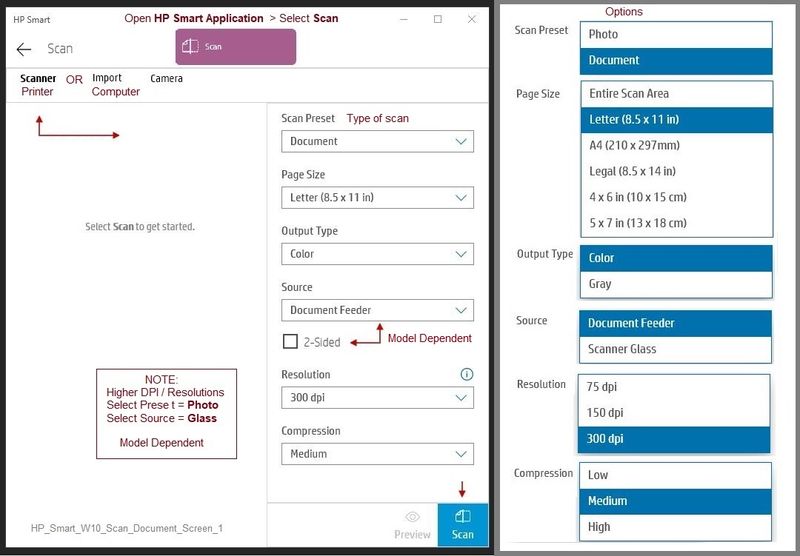
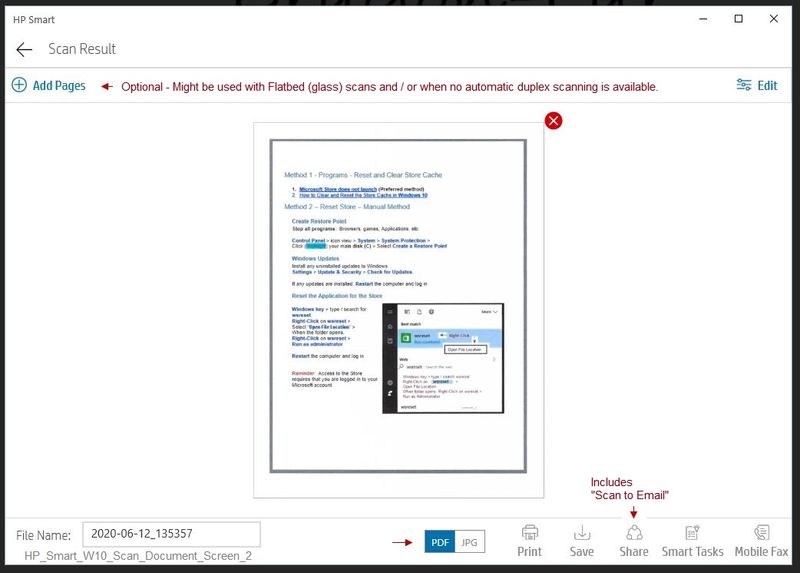
HP Smart for Windows
HP Smart is an application available from the Windows Store.
Learn how to use HP Smart on your Windows 10 computer.
Open the Software and Drivers Support Website for your printer > Check the Box Get the App
OR
HP Printers - Using the HP Smart App (Windows 10)
NOTE: Website includes the HP Smart software for Windows and Mobile devices, plus an FAQ section to assist with questions / issues
HP Smart Tasks for Windows and HP Smart Mobile
HP Printers - HP Smart: Use Smart Tasks
Printer Home Page - References and Resources – Learn about your Printer - Solve Problems
“Things that are your printer”
NOTE: Content depends on device type and Operating System
Categories: Alerts, Access to the Print and Scan Doctor (Windows), Warranty Check, HP Drivers / Software / Firmware Updates, How-to Videos, Bulletins/Notices, Lots of How-to Documents, Troubleshooting, User Guides / Manuals, Product Information (Specifications), more
When the website support page opens, Select (as available) a Category > Topic > Subtopic
HP ENVY 7640 e-All-in-One Printer Specifications
Thank you for participating in our HP Community.
We are a world community of volunteers dedicated to supporting HP technology
Click Thumbs Up to say Thank You for the assist.
Answered? Click "Accept as Solution" to help others find it.
Dragon-Fur
07-02-2020 12:08 PM
HP Recommended
Thank you for your reply, but it doesn't solve my problem. The scanner feature of the printer never did automatically do duplex scanning. It was the HP Scan application that made it possible. With the HP Scan application I would load the ADF and the front side of each page would be scanned, then I would rotate the documents and reload into the ADF and the HP Scan application would handle the correct sequencing of the pages. I can not find the HP Scan application anywhere. The solution you provided was for duplex printing - not two sided scanning. Is there anywhere that I can get the HP Scan application?
07-02-2020 12:18 PM
HP Recommended
The Full Feature Software normally includes the HP Scan subset.
For example
C:\Program Files (x86)\HP\HP OfficeJet Pro 9020 series\bin\HPScan.exe
Interesting that HP Scan is not available in your Full Feature Software - HP Scan is not normally a separate download.
The only other solution involving HP Scan is actually an even older subset of the HP Scan code called HP Scan Extended.
Might work for you - HPSE does require that you have installed the Full Feature Software for your printer.
HP Scan Extended
- Download-Save-Install > HP Scan Extended
- HPSE is a subset an older Full Feature Software suite.
- HPSE features are very similar to the HP Scan Software released after 2015.
- Although HPSE appears to be a separate software, HPSE is dependent on the infrastructure provided by the Full Feature Software. The Full Feature Software for your printer should be installed before installing and using HPSE.
- OPTIONAL: Add HP Scan Extended shortcut to Taskbar / Send to Desktop / Pin to Start
- Open File Explorer > Navigate to C:\Program Files (x86)\HP\HP Scan Extended\bin
- Right-Click HPScan.exe > Select Pin to Taskbar / Send to Desktop / Pin to Start
- HP Scan Extended features include (and are not limited to): Single, Multiple scans, Image and PDF scans, Email as PDF / JPEG, Source selection, Page Size choices include Auto-Detect (extracts image / document boundary). Might include OCR (Save as Editable Text).
===============================================================
There is also an odd looking setup that is the result of having run the Doctor version 5.0.6
This creates a separate queue structure for the printer in Devices and Printers.
NOTE:
This is NOT intended to be part of your answer except that it might be relevant under certain circumstances...
Ignore if not related.
Open Control Panel > icon view > Devices and Printers
Right-Click on the printer NOT marked as “Scan Only / DO NOT DELETE”
Set printer as Default
Example – Printers listed in Devices and Printers
Set “Default” Printer = HP OfficeJet Pro 9020 series PCL-3
NOT Default = Scan Only -HP OfficeJet Pro 9020 series PCL-3 (Network)-DO NOT DELETE
Thank you for participating in our HP Community . We are a world community of volunteers dedicated to supporting HP technology. |
Dragon-Fur
07-02-2020 12:28 PM
HP Recommended
The software that I loaded originally was from HP and the name is EN7640_Full_WebPack_40.13.1176. exe
I just downloaded the HP Scan Extended and when I try to run it I get a message "The HP Imagining Device not found".
07-02-2020
12:55 PM
- last edited on
12-23-2025
11:05 AM
by
 Animatryx
HP Recommended
Edits - repost question, edit final section
is the HP Scan subset still located in the bin folder?
Example: C:\Program Files (x86)\HP\HP OfficeJet Pro 9020 series\bin\HPScan.exe
Conclusion -
P.A. is likely corrupted.
See comment / suggestion by @ShlomiL
<Original Content Removed>
Left as Reference...
EN7640_Full_WebPack_40.13.1176.exe (105.9 MB)
Yes, that is the Full Feature Software.
HP app for Windows
HP app is an application available from the Windows Store.
Learn how to use HP app on your Windows 10 computer.
Open the Software and Drivers Support Website for your printer > Check the Box Get the App
OR
HP Printers - Using the HP App (Windows 10)
NOTE: Website includes the HP software for Windows and Mobile devices, plus an FAQ section to assist with questions / issues
HP Smart Tasks for Windows and HP app Mobile
HP Printers - HP app: Use Smart Tasks
Thank you for participating in our HP Community.
We are a world community of volunteers dedicated to supporting HP technology
Click Thumbs Up to say Thank You for the assist.
Answered? Click "Accept as Solution" to help others find it.
Dragon-Fur

07-03-2020 12:52 AM
HP Recommended
Hi,
When you open the HP Envy 7640 software, can you see the scan tab listed and can you click on Scan a document or photo?
If not, try following the HP Print and Scan Doctor Utility by selecting Fix Scanning and be sure to complete any suggested step:
http://ftp.hp.com/pub/printers/hppsdr/HPPSdr.exe
Please let me know the results, and also the test results if any error is detected.


Click the Yes button to reply that the response was helpful or to say thanks.
If my post resolve your problem please mark it as an Accepted Solution 🙂
07-03-2020 07:54 AM
HP Recommended
Thanks - I was trying to back around into this one, I guess.
I did not get an answer - confirmation on this:
When the software is not fully installed - or is not functional, is the HP Scan subset still located in the bin folder?
Example: C:\Program Files (x86)\HP\HP OfficeJet Pro 9020 series\bin\HPScan.exe
Thank you for participating in our HP Community . We are a world community of volunteers dedicated to supporting HP technology. |
Dragon-Fur
07-03-2020 12:20 PM
HP Recommended
I do see the scan tab and I can click on it. But it ONLY ALLOWS SINGLE SIDE scanning. How do I do TWO SIDED scanning - without manually scanning one side of a page and then scanning the other side? I don't mind if I can scan the single side of multiple sides of the documents by using the ADF and then rotating them and putting them in the ADF to scan the other side as long as the software can correctly sequence the pages.

Be alert for scammers posting fake support phone numbers and/or email addresses on the community.
If you think you have received a fake HP Support message, please report it to us by clicking on "Flag Post".
† The opinions expressed above are the personal opinions of the authors, not of HP. By using this site, you accept the Terms of Use and Rules of Participation.


Didn't find what you were looking for?
Ask the community
† The opinions expressed above are the personal opinions of the authors, not of HP. By using this site, you accept the <a href="https://www8.hp.com/us/en/terms-of-use.html" class="udrlinesmall">Terms of Use</a> and <a href="/t5/custom/page/page-id/hp.rulespage" class="udrlinesmall"> Rules of Participation</a>.