• ×
    Information
    Need Windows 11 help?
    Check documents on compatibility, FAQs, upgrade information and available fixes.
    Windows 11 Support Center.
  • post a message
  • ×
    Information
    Need Windows 11 help?
    Check documents on compatibility, FAQs, upgrade information and available fixes.
    Windows 11 Support Center.
  • post a message
Guidelines
Is your HP DeskJet 3830 series scanner not working? Here is the solution Click here to view the instructions!
Common problems HP Solution Center not working : Adobe Flash Player Error and Unable to scan
We would like to share some of the most frequently asked questions about HP Solution Center not working : Adobe Flash Player Error and Unable to Scan.
HP Recommended

I just tried Easy scan with my new HP 9010 and the document scan worked and I was able to save to my files. Unfortunately my older HP 6970 does not still work.  Not sure what recently changed but at least it is working now with one of my HP printers.

HP Recommended

I see @IronBadger has shared some great information in another post. Thank you! So I copy it here. Hope it helps. 


No Preview for crop and adjustments, no Send to option, Communication errors, etc.


For those reporting the Gray preview window and the lack of being able to Send to, it seems deleting the preferences resolves these issues for me.


If you downloaded HP Easy Scan from the Mac App store then you need to delete the following folders

~/Users/username/Library/Containers/com.hp.EasyScanMac

~/Users/username/Library/Containers/com.hp.scan.request.handler


If you downloaded HP Easy Scan using HP Smart then you need to delete the following files

~/Users/username/Library/Preferences/com.hp.EasyScanMac.plist

~/Users/username/Library/Preferences/com.hp.scan.HPScanCaptureMgr.plist

Then relaunch HP Easy Scan.


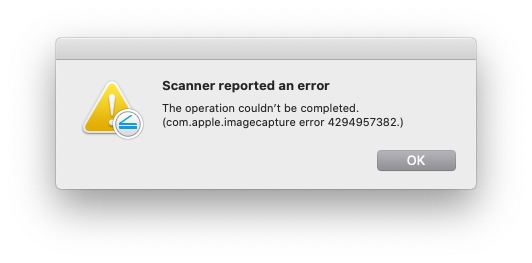
In macOS Catalina I will reliably get the communication error on the first scan.

Screen Shot 2020-03-19 at 10.26.41 AM.png


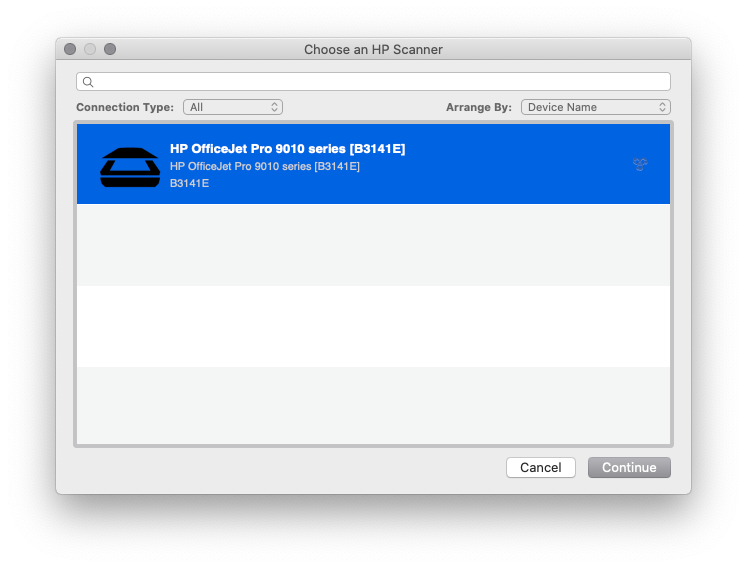
After this occurs click Ok.  Then select Browse Scanners and select your scanner.  I was then able to successfully scan.

Screen Shot 2020-03-19 at 10.24.11 AM.png


I will periodically get the communication error again if I try and scan consecutive pages quickly.  Simply waiting a few seconds allows for a successful scan.  I have it under good authority that the next update to a certain OS resolves drastically reduces this timing issue.


For those getting the 704 errors it could be 1 of 2 issues.

1. You do not have the complete HP Essentials Package installed on your macOS.  To make sure you have the latest Essentials download and run HP East Start.  Some older devices require a device driver that is not installed as part of HP Easy Scan but is installed with the Essentials.  Image Capture needs these drivers for older devices as well.  These drivers are located in:

~/Library/Image Capture/Devices

There could be any number of HP Scanner devices.  Each driver supports different devices and have names like "HP Scanner 4".


2. If you have installed the latest Essentials package and still get the 704  error it may mean your device is not supported in macOS Catalina.  Some device drivers were not able to be ported over.  This mainly includes several old ScanJet models like  the 200 and 300.


And finally, if all this fails I suggest deleting all of the preferences referenced earlier and then deleting HP Easy Scan from the apps folder.  Then go to the Mac App store and re-download HP Easy Scan.  Then try scanning again.


I am HP Employee
† The opinions expressed above are the personal opinions of the authors, not of HP. By using this site, you accept the <a href="https://www8.hp.com/us/en/terms-of-use.html" class="udrlinesmall">Terms of Use</a> and <a href="/t5/custom/page/page-id/hp.rulespage" class="udrlinesmall"> Rules of Participation</a>.