
-
×InformationNeed Windows 11 help?Check documents on compatibility, FAQs, upgrade information and available fixes.
Windows 11 Support Center. -
-
×InformationNeed Windows 11 help?Check documents on compatibility, FAQs, upgrade information and available fixes.
Windows 11 Support Center. -
- HP Community
- Printers
- Scanning, Faxing, and Copying
- Re: Scan Error to PC

Create an account on the HP Community to personalize your profile and ask a question
Your account also allows you to connect with HP support faster, access a personal dashboard to manage all of your devices in one place, view warranty information, case status and more.
Common problems HP Solution Center not working : Adobe Flash Player Error and Unable to scan
We would like to share some of the most frequently asked questions about HP Solution Center not working : Adobe Flash Player Error and Unable to Scan.

It has been a while since anyone has replied. Simply ask a new question if you would like to start the discussion again.

05-03-2023 07:42 PM
 HP Recommended
Product: HP OfficeJet Pro 8715 All-in-One Printer
Operating System: Microsoft Windows 10 (64-bit)
Before Shutting down the PC and the 8710 Printer, the "Enable" is selected from the Manage Scan to Computer from within the Printer Assistant. However, when rebooting the next day, the Scan to Printer is no longer Enabled.
Device Manager Shows 3 Printers in the "Imaging Devices:
- HP Officejet Pro 8710 (Net)
- HP Officejet Pro 8710 (FSEDC8
- HP F5EDC8 (HP Officejet Pro 8710)
In the Control Panel folder for "Devices" the printer listed is HP Officejet Pro 8710 PCL-3 (Network)
From the Printer the Settings Data list the Printer Hostname as: HP F5EDC8 The only item showing Disabled is
SNMPv3
Solved! Go to Solution.
1 ACCEPTED SOLUTION
Accepted Solutions


05-10-2023 02:29 PM - edited 06-01-2023 06:37 AM
HP Recommended
Sure, in my experience, it is possible the setup is not working as it should.
======================================
Processes are listed in the Task Manager
Windows 10
Right-Click an empty area of the Taskbar and select Task Manager
In the Task Manager window, click on 'More details' near the bottom left
Windows 11
Start > Search “Task Manager” > optionally PIN to Startup / Task Bar
Open Task Manager
Reminder
Processes that are disabled in Startup will not be listed in Processes
Next,
Running Processes are listed in Processes
Search the list of processes > Find the process you want to stop: ScanToPCActivationApp
Right-Click on the process > End Task
===========================
Find and Disable (or Enable) Process
Windows 10
Right-Click an empty area of the Taskbar and select Task Manager
In the Task Manager window, click on 'More details' near the bottom left
Select tab Start-up
Windows 11
Start > Search “Task Manager” > optionally PIN to Startup / Task Bar
Open Task Manager
Open (left column) Startup Apps
Next - Optional
If at least one ScanToPCActivationApp process is listed,
Check the Properties of the process to find information about that process.
For example,
Right-Click the (first) process: ScanToPCActivationApp > Properties
Tab General > Note the information in section Location (includes the model of the printer)
Click Cancel to close the menu
Next,
Disable (or enable) the process
Right-Click on ScanToPCActivationApp
Select to Disable / Enable the process
Close Task Manager (and other programs)
Restart the notebook and log in
Alternatively –
Next,
Settings > Apps > Startup
Check the list for ScanToPCActivationApp
If found, Adjust the setting to OFF / ON
Thank you for participating in the HP Community --
People who own, use, and support HP devices.
Click Yes to say Thank You
Question / Concern Answered, Click my Post "Accept as Solution"
Dragon-Fur

6 REPLIES 6
05-04-2023 10:28 AM
HP Recommended
Welcome to the HP Community Forum.
Much depends on the stability of your network, perhaps the connection type, and whether your printer software is fully installed and functional. Software depends on Windows fully cooperating - generally not a problem but, you know ... Updates can squash printer software on occasion.
Part of the equation -- that is, whether the enable works by itself - is whether the ScanToPCActivationApp Process has been disabled and / or whether the setup is switched on in Windows when it starts.
Your Printer Assistant shortcut is perhaps tied to HP OfficeJet Pro 8710 PCL-3 (Network)
====================================
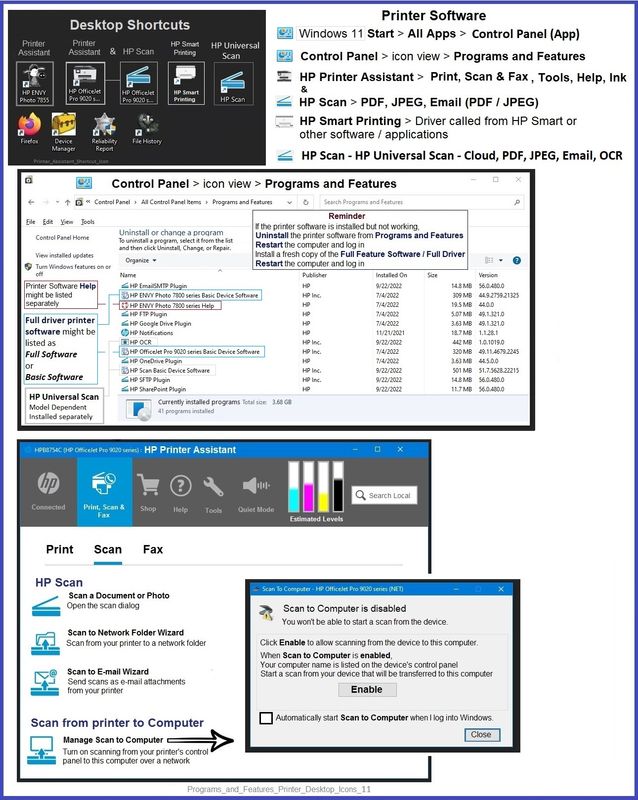
The installation of the full driver adds at least two shortcuts to the Desktop:
Printer Assistant
HP Scan
Open the Printer Assistant > tab Scan > Manage Scan to Computer > Enable
Example - Windows - Full Feature Software - Installed
========================
HP Printer Home Page - References and Resources
Learn about your Printer - Solve Problems
“Things that are your printer”
When the website support page opens, Select (as available) a Category > Topic > Subtopic
NOTE: Content depends on device type and Operating System
Categories: Alerts, Access to the Print and Scan Doctor (Windows), Warranty Check, HP Drivers / Software / Firmware Updates, How-to Videos, Bulletins/Notices, Lots of How-to Documents, Troubleshooting, Manuals > User Guides, Product Information (Specifications), Supplies, and more
Open
HP OfficeJet Pro 8710 All-in-One Printer series
Thank you for participating in the HP Community --
People who own, use, and support HP devices.
Click Yes to say Thank You
Question / Concern Answered, Click my Post "Accept as Solution"
Dragon-Fur

05-05-2023 02:12 PM
HP Recommended
The image shows the software installed in Programs and Features.
Yes, this is the full feature software.
No, there is not a "better" installation package.
Source
Software and Drivers > Section Software - Utility
The installation of the full driver adds at least two shortcuts to the Desktop:
Printer Assistant
HP Scan
Open the Printer Assistant > tab Scan > Manage Scan to Computer > Enable
Can't use - or don't want - to use the Printer Assistant?
Check here:
Settings > Apps > Startup
Examples
Check the list for ScanToPCActivationApp
If found, Adjust the setting from OFF to ON
NOTE: If you have more than one HP printer that supports this option, there will be a separate listing for each printer.
Thank you for participating in the HP Community --
People who own, use, and support HP devices.
Click Yes to say Thank You
Question / Concern Answered, Click my Post "Accept as Solution"
Dragon-Fur
05-10-2023 01:52 PM
HP Recommended
Where do I locate: "the ScanToPCActivationApp Process " to determine if it has been disabled and / or whether the setup is switched on in Windows when it starts. I don't see it in the list of "services"
This is where I have to go to enable scan to computer everytime the computer does a clean boot.
It will stay enabled until I turn off the computer

05-10-2023 02:29 PM - edited 06-01-2023 06:37 AM
HP Recommended
Sure, in my experience, it is possible the setup is not working as it should.
======================================
Processes are listed in the Task Manager
Windows 10
Right-Click an empty area of the Taskbar and select Task Manager
In the Task Manager window, click on 'More details' near the bottom left
Windows 11
Start > Search “Task Manager” > optionally PIN to Startup / Task Bar
Open Task Manager
Reminder
Processes that are disabled in Startup will not be listed in Processes
Next,
Running Processes are listed in Processes
Search the list of processes > Find the process you want to stop: ScanToPCActivationApp
Right-Click on the process > End Task
===========================
Find and Disable (or Enable) Process
Windows 10
Right-Click an empty area of the Taskbar and select Task Manager
In the Task Manager window, click on 'More details' near the bottom left
Select tab Start-up
Windows 11
Start > Search “Task Manager” > optionally PIN to Startup / Task Bar
Open Task Manager
Open (left column) Startup Apps
Next - Optional
If at least one ScanToPCActivationApp process is listed,
Check the Properties of the process to find information about that process.
For example,
Right-Click the (first) process: ScanToPCActivationApp > Properties
Tab General > Note the information in section Location (includes the model of the printer)
Click Cancel to close the menu
Next,
Disable (or enable) the process
Right-Click on ScanToPCActivationApp
Select to Disable / Enable the process
Close Task Manager (and other programs)
Restart the notebook and log in
Alternatively –
Next,
Settings > Apps > Startup
Check the list for ScanToPCActivationApp
If found, Adjust the setting to OFF / ON
Thank you for participating in the HP Community --
People who own, use, and support HP devices.
Click Yes to say Thank You
Question / Concern Answered, Click my Post "Accept as Solution"
Dragon-Fur

Be alert for scammers posting fake support phone numbers and/or email addresses on the community.
If you think you have received a fake HP Support message, please report it to us by clicking on "Flag Post".
† The opinions expressed above are the personal opinions of the authors, not of HP. By using this site, you accept the Terms of Use and Rules of Participation.


Didn't find what you were looking for?
Ask the community
† The opinions expressed above are the personal opinions of the authors, not of HP. By using this site, you accept the <a href="https://www8.hp.com/us/en/terms-of-use.html" class="udrlinesmall">Terms of Use</a> and <a href="/t5/custom/page/page-id/hp.rulespage" class="udrlinesmall"> Rules of Participation</a>.