• ×
    Information
    Need Windows 11 help?
    Check documents on compatibility, FAQs, upgrade information and available fixes.
    Windows 11 Support Center.
  • post a message
  • ×
    Information
    Need Windows 11 help?
    Check documents on compatibility, FAQs, upgrade information and available fixes.
    Windows 11 Support Center.
  • post a message
Guidelines
Is your HP DeskJet 3830 series scanner not working? Here is the solution Click here to view the instructions!
Common problems HP Solution Center not working : Adobe Flash Player Error and Unable to scan
We would like to share some of the most frequently asked questions about HP Solution Center not working : Adobe Flash Player Error and Unable to Scan.
HP Recommended
HP Officejet Pro 8610
Microsoft Windows 10 (64-bit)

When I try to use my HP8610 - 3 in 1 to scan, I get an error message, “Scanner unreachable.  Scanner communication cannot be established”.  I’m running Windows10 and the device is connected directly to my desk top computer via USB cable.  Am able to print w/no issue.  Have swapped ports and powered down/unplugged and re-connected to no avail.  I’ve run the HP Print and Scan Doctor multiple times and it shows a “Windows (WIA) Scan Error” each time even though afterwards it says it’s fixed it.  Anyone got any ideas?

4 REPLIES 4
HP Recommended

@Jaybird123


Welcome to HP support community.


Check Windows Image Acquisition settings

  • 1. In Windows, search for and open View local services .

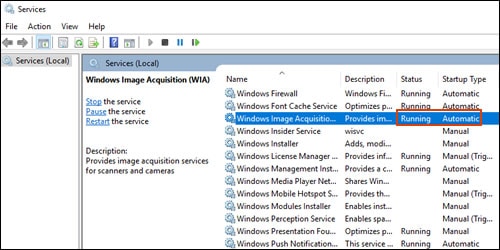
  • 2. In the Services window, scroll down the list and find Windows Image Acquisition (WIA) .

  • 3. Look at the Status and Startup Type values.

    • If the status is Started or Running and the Startup Type is Automatic, WIA is running correctly. Skip to the next step.

      Making sure WIA Status is Running and Startup Type is Automatic

    • If the status is Disabled or no status displays, right-click Windows Image Acquisition (WIA), click Properties, click the General tab, select Automatic from the Startup type dropdown menu, and then click Start.

      If the Start button is grayed out, go back to the Services menu, make sure Remote Procedure Call, Shell Hardware Detection, RPC Endpoint Mapper, and DCOM Server Process Launcher are running and set as Automatic, and then start WIA.

You can refer this HP document for more assistance:- Click here


I hope that helps.

To thank me for my efforts to help you, please mark my post as an accepted solution so that it benefits several others.

Cheers.

Sandytechy20
I am an HP Employee

HP Recommended

Good morning Sandytechy20,  While I appreciate your attempt to solve my issue my posting excerpts from HP's standard troubleshooting guide, I had already referenced it on my own prior to posting my question.  All the Services (WIA, Remote Procedure Call, Shell Hardware Detection, RPC Endpoint Mapper, and DCOM Server Process Launcher) are all set -up and running properly so the your proposed solution did not work.  To me, it seem like it might be a hardware issue, specifically the USB cable.  Is it possible to have a cable good enough to allow printer communication/operation but bad enough to prevent scanner communication/operation?

HP Recommended

The scanner function actually works.  I can scan and save to a USB storage device via the USB port on the 8610 device itself.  However, I cannot scan to a computer and when I open “Print, Scan and Fax” on the HP Printer Assistant, I get no “Manage Scan to Computer” option (see below).  Tried to reload software and Wizard doesn’t seem to realize that I’ve already connected the USB cable as it keeps asking me to connect it.  Yet, the printer function connects to the computer via the same cable and works fine.  That’s why I asked the cable question above.


HP issue.jpg

HP Recommended

@Jaybird123


Follow these steps and enable scan to computer:

  1. Click on the printer Icon (on your desktop) and it will bring up the HP Printer Assistant.
  2. Under the Scan menu, there is a “Manage Scan to Computer”, click on that.
  3. Make sure that you “Enable” Scan to Computer.

I hope that helps.

To thank me for my efforts to help you, please mark my post as an accepted solution so that it benefits several others.

Cheers.

Sandytechy20
I am an HP Employee

† The opinions expressed above are the personal opinions of the authors, not of HP. By using this site, you accept the <a href="https://www8.hp.com/us/en/terms-of-use.html" class="udrlinesmall">Terms of Use</a> and <a href="/t5/custom/page/page-id/hp.rulespage" class="udrlinesmall"> Rules of Participation</a>.