• ×
    Information
    Need Windows 11 help?
    Check documents on compatibility, FAQs, upgrade information and available fixes.
    Windows 11 Support Center.
  • post a message
  • ×
    Information
    Need Windows 11 help?
    Check documents on compatibility, FAQs, upgrade information and available fixes.
    Windows 11 Support Center.
  • post a message
Guidelines
Printing Blank Pages via USB OTG? Here’s How to Fix Your OfficeJet! Click here to check it out!
Check some of the most frequent questions about Instant Ink: HP INSTANT INK, HP+ PLANS: INK AND TONER.


Check out our Black or Color Ink Not Printing, Other Print Quality Issues info about: Print quality and Cartridge Issues.
HP Recommended
HP OfficeJet Pro 6970 All-in-One Printer
Microsoft Windows 10 (64-bit)

hi,

the color green is printed as yellow all the time. did several times a cleanup but without success.

changed all cartridges as well.


another issue I have duplex scanning produces suddenly always a paper jam.


please any advise.


thanks and kind regards

4 REPLIES 4
HP Recommended

@inconsx


Welcome to the HP support community.


I understand that you are getting print quality issue and paper jam issue on your printer, I am glad to assist you.

1)Follow these steps to fix print quality issues:-

   Make sure the ink cartridges are properly vented and seated correctly

  1. Turn on the printer, if it is not already turned on.

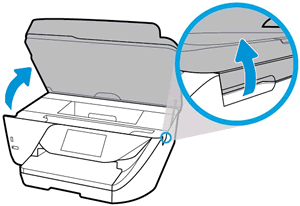
  2. Open the ink cartridge access door.

    The carriage moves to the center of the printer.

    Open the cartridge access door

  3. Wait until the carriage stops moving before you continue.

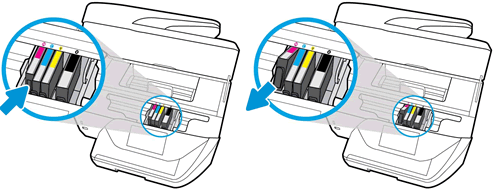
  4. Press the tab inward on the front of the old ink cartridge to release it, and then pull up on the ink cartridge to remove it from the slot.

    Pushing the ink cartridge inward and then pulling up to remove it

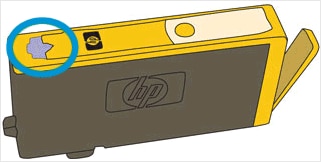
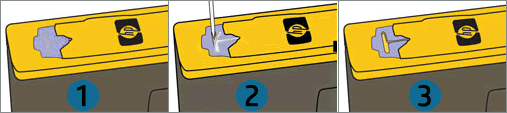
  5. Examine the vent area above the HP logo on the top of the ink cartridge.

    Image: Examine the vent area on the top of the cartridge

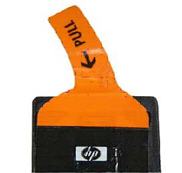
  6. If the ink cartridge still has the orange pull-tab attached, pull to remove it.

    Image: Remove the orange pull-tab

  7. If the vent is clogged, use a straight pin to gently remove excess adhesive from the vent.

    1.  

      Clogged vent
    2. With a straight pin, gently remove excess adhesive from the vent

    3. Unclogged vent

  8. Turn the ink cartridge so that the ink cartridge contacts face downward, and then match the label color with the color dot on the carriage.

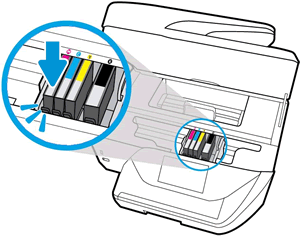
  9. Slide the ink cartridge into its slot, and then gently press the ink cartridge down until it snaps into place.

    Reinserting the ink cartridge

  10. Repeat these steps to inspect the vents on each of the ink cartridges.

  11. Make sure each ink cartridge is firmly installed in its slot. Run your finger along the top of the ink cartridges to feel for any that are protruding, and if any are, press down firmly until each ink cartridge snaps into place.

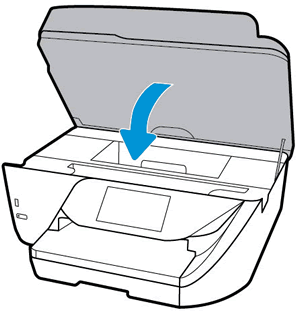
  12. Close the ink cartridge access door.

    Closing the ink cartridge access door

2) Clean the duplexing rollers to fix paper jam issue


Clean the rollers behind the ink access area of the printer.

  1. Turn off the printer, and then disconnect the power cord.

       WARNING: 

    Disconnect the power cord before reaching inside the printer to avoid risk of injuries or electric shock.

  2. Open the ink cartridge access door.

    Opening the ink cartridge access door

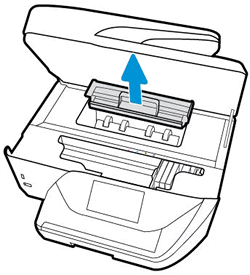
  3. Remove the paper path cover.

    Removing the paper path cover

  4. Lightly dampen a clean, lint-free cloth with bottled or distilled water, and then squeeze any excess liquid from the cloth.

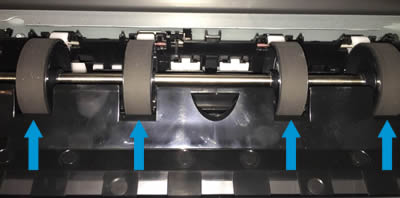
  5. Press the cloth against the rollers, and then rotate them upward with your fingers. Apply a moderate amount of pressure to remove any dust or dirt buildup.

    Cleaning the paper path cover rollers

  6. Allow the rollers to dry completely (approximately 10 minutes).

  7. Insert the paper path cover back into the printer.

  8. Close the ink cartridge access door.

  9. Reconnect the power cord to the rear of the printer, and then turn on the printer.

Refer to this HP document for further assistance:- Click here


Let me know how it goes.

If this helps, please mark the public post as an accepted solution so that it benefits several others.

Cheers.

Sandytechy20
I am an HP Employee

HP Recommended

Hi,


duplex scan is working again after cleaning! Thanks!

the cartridge is brand new and fine. vent area is good. The printing issue still exists.


thanks and regards

Michael


HP Recommended

hi,


I could locate the color printing issue.

It's the cyan cartridge. I've exchanged it with another brand new one. It's just a little bit better but a lot of stripes.


How can I clean the cyan printer head?


cheers

HP Recommended

@inconsx


Follow these steps to clean the printhead:-

  1. From the printer control panel, open the Setup  menu.

  2. Open the Printer Maintenance menu.

  3. If necessary, open the Tools menu, and then touch Clean Printhead.

  4. Examine the test page.

    • If the print quality is unacceptable, touch Clean Again to continue the next level of cleaning. If necessary, repeat these steps for the third cleaning cycle.

      NOTE: 

      If the printhead is badly clogged, it might require another cleaning cycle. If so, wait 30 minutes before you perform all three levels of cleaning again.

    • If the print quality is acceptable, touch Done.

Refer to this HP document for further assistance:- Click here


Keep me posted.

If this helps, please mark the public post as an accepted solution so that it benefits several others.

Cheers.

Sandytechy20
I am an HP Employee

† The opinions expressed above are the personal opinions of the authors, not of HP. By using this site, you accept the <a href="https://www8.hp.com/us/en/terms-of-use.html" class="udrlinesmall">Terms of Use</a> and <a href="/t5/custom/page/page-id/hp.rulespage" class="udrlinesmall"> Rules of Participation</a>.