• ×
    Information
    Need Windows 11 help?
    Check documents on compatibility, FAQs, upgrade information and available fixes.
    Windows 11 Support Center.
  • post a message
  • ×
    Information
    Need Windows 11 help?
    Check documents on compatibility, FAQs, upgrade information and available fixes.
    Windows 11 Support Center.
  • post a message
Guidelines
Printing Blank Pages via USB OTG? Here’s How to Fix Your OfficeJet! Click here to check it out!
Check some of the most frequent questions about Instant Ink: HP INSTANT INK, HP+ PLANS: INK AND TONER.


Check out our Black or Color Ink Not Printing, Other Print Quality Issues info about: Print quality and Cartridge Issues.
HP Recommended

HP All in One Envy 5661 Printer, scanner, copier.

I need to brighten the copy image of my copies. When I change to the brightest setting, press done and exit, it reverts to the factory setting.

1 REPLY 1
HP Recommended

@Rondoalone 


Welcome to the HP Community Forum.


Good News >> This printer series does support a wider variety of Copy features than some other models.

The Specification document mentions that you can set the Copy Defaults from settings entered on the printer control panel.


HP ENVY 5660 e-All-in-One Printer (F8B04A) Specifications

Copy

Copy speed black (draft, A4)
Up to 21 cpm
Copy speed color (draft, A4)
Up to 19 cpm
Copies, maximum
Up to 50 copies
Copy reduce / enlarge settings
25 to 400%
Color copy capability
Yes
Copier settings
Number of Copies; 2-Sided; Draft; Black; Color; Quality; Resize; Lighter/Darker; Paper Size; Paper Type; Margin Shift; Enhancements; Set as New Defaults


The Setup Guide agrees with the Copy options in specifications but might not explain how to set the copy defaults.


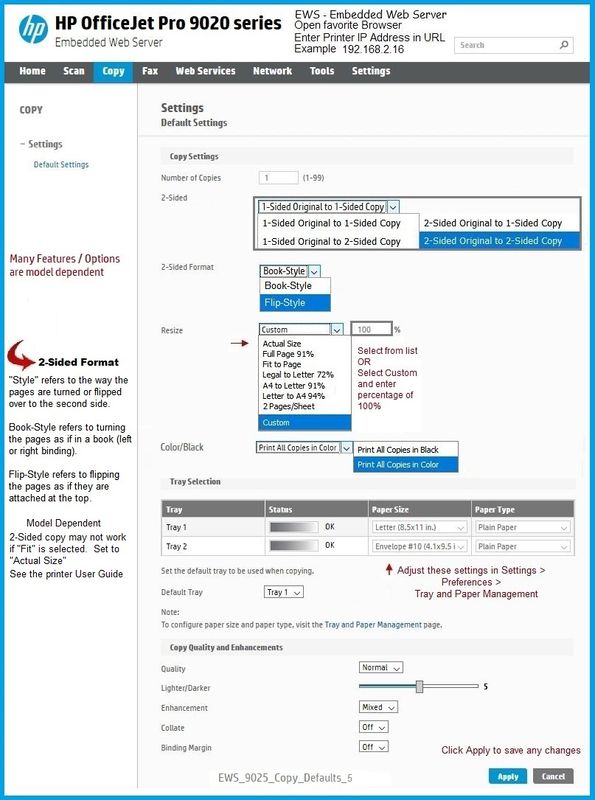
The following example uses the Embedded Web Server (EWS) to set / adjust / save the Copy Settings.

If EWS is supported on your printer,

Look for the Copy tab and how to set the options.


EWS > HP Document / How-to

Use the HP printer Embedded Web Server (EWS)


Open your favorite browser > type / enter Printer IP address into URL / Address bar

Tab Copy > Settings > Default SettingsCopy Defaults / Default Settings (wording can vary)


EWS_9025_Copy_Defaults_5EWS_9025_Copy_Defaults_5


What else?


If other options fail to work,

Use HP Smart to Scan and optionally edit the scanned content before it is saved.

If the content is an image that you have previously saved onto your computer,

The image can be retrieved (Imported) and then edited.

Scan > Preset = Image > Import > select and Import image file > Edit

Select Edit option Adjust

Ask if you need an example of this method...


=+=+=+=+=+=+=+=+=+=+=+=+=+=+=+=+=+=+=+=+=+=+

HP Printer Home Page - References and Resources

Learn about your Printer  - Solve Problems

“Things that are your printer”

When the website support page opens, Select (as available) a Category > Topic Subtopic

NOTE:  Content depends on device type and Operating System

Categories:  Alerts, Access to the Print and Scan Doctor (Windows), Warranty Check, HP Drivers / Software / Firmware Updates, How-to Videos, Bulletins/Notices, Lots of How-to Documents, Troubleshooting, Manuals > User Guides, Product Information (Specifications), Supplies, and more

Open

HP ENVY 5660 e-All-in-One Printer series 


Thank you for participating in the HP Community --

People who own, use, and support HP devices.

Click Yes to say Thank You

Question / Concern Answered, Click "Accept as Solution"


Dragon-Fur

† The opinions expressed above are the personal opinions of the authors, not of HP. By using this site, you accept the <a href="https://www8.hp.com/us/en/terms-of-use.html" class="udrlinesmall">Terms of Use</a> and <a href="/t5/custom/page/page-id/hp.rulespage" class="udrlinesmall"> Rules of Participation</a>.