-
×InformationNeed Windows 11 help?Check documents on compatibility, FAQs, upgrade information and available fixes.
Windows 11 Support Center. -

-
×InformationNeed Windows 11 help?Check documents on compatibility, FAQs, upgrade information and available fixes.
Windows 11 Support Center. -
- HP Community
- Printers
- Printing Errors or Lights & Stuck Print Jobs
- Re: HP ENVY 5540 won't print page range or multi page docume...

Create an account on the HP Community to personalize your profile and ask a question
03-17-2017 09:26 AM
Everytime I push print all or print page range, it prints the first page and then no more. What can I do when I am trying to print out a multi page document?
Solved! Go to Solution.
Accepted Solutions
03-17-2017 09:36 AM
Hi@patsym57
Go printing preferences once and check if settings are set correctly.
- Before printing, edit the document to adjust text font and size, choose layout options, and to change any other appearance settings.
- In the app you created the document in, click File or the menu icon
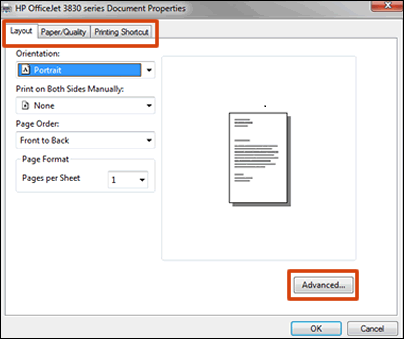
(WordPad), then click Print to open general print settings. - To access more layout, quality, and advanced print settings, click Printer Properties, Properties, or Preferences.The Document Properties or Printing Preferences window opens.Figure : Example of a Document Properties window with settings tabs and the Advanced settings button

- Change the following layout and paper settings for your print job. Menu names and available settings vary by printer.
NOTE:
If the Document Properties window has a Printing Shortcut tab, select one of the document print job shortcuts that has essential settings already selected for you.To simply say thanks, please click the "Thumbs Up" button to give me a Kudos to appreciate my efforts to help.
If this helps, please mark this as “Accepted Solution” as it will help several others with the same issue to get it resolved without hassles.
Take care now and have a splendid week ahead.
03-17-2017 09:36 AM
Hi@patsym57
Go printing preferences once and check if settings are set correctly.
- Before printing, edit the document to adjust text font and size, choose layout options, and to change any other appearance settings.
- In the app you created the document in, click File or the menu icon
(WordPad), then click Print to open general print settings. - To access more layout, quality, and advanced print settings, click Printer Properties, Properties, or Preferences.The Document Properties or Printing Preferences window opens.Figure : Example of a Document Properties window with settings tabs and the Advanced settings button

- Change the following layout and paper settings for your print job. Menu names and available settings vary by printer.
NOTE:
If the Document Properties window has a Printing Shortcut tab, select one of the document print job shortcuts that has essential settings already selected for you.To simply say thanks, please click the "Thumbs Up" button to give me a Kudos to appreciate my efforts to help.
If this helps, please mark this as “Accepted Solution” as it will help several others with the same issue to get it resolved without hassles.
Take care now and have a splendid week ahead.