• ×
    Information
    Need Windows 11 help?
    Check documents on compatibility, FAQs, upgrade information and available fixes.
    Windows 11 Support Center.
  • post a message
  • ×
    Information
    Need Windows 11 help?
    Check documents on compatibility, FAQs, upgrade information and available fixes.
    Windows 11 Support Center.
  • post a message
Guidelines
Here is the solution for Blue screen error 83C0000B on HP OfficeJet Pro 8010e, 9020e Printer Series: Click here to view.
Check some of the most frequent questions about Instant Ink: HP INSTANT INK, HP+ PLANS: INK AND TONER.


Check out our Black or Color Ink Not Printing, Other Print Quality Issues info about: Print quality and Cartridge Issues.
HP Recommended
Envy 4524
Microsoft Windows 10 (32-bit)

Trying to print from Word Documen ts. Priunter works fine but only prints blank pages. Even does this if I copy or can via the printer. 


Have only ever used genuine HP cartridges (302's) and the cartridges fitted are brand new, full and I've removed the film tab that needs removing before use. Wireless connection to PC working fine. 


Anyone have any ideas?

1 REPLY 1
HP Recommended

@Jerryhill05

Thank you for being a part of HP Forums,

It’ll be an honor to guide you through the steps needed to identify your concern and/or address your query.

I'm sorry that you have an issue with your new cartridge. I'm certain that with these steps I'm about to initiate, we're going to have a proper and permanent resolution in place in no time at all.

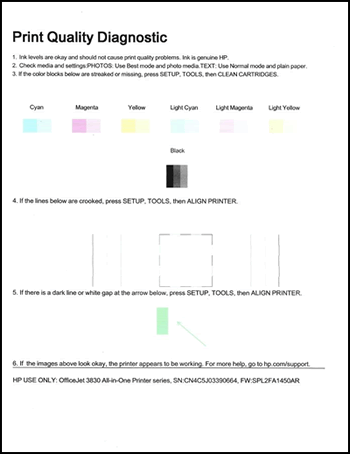
To troubleshoot this issue, print a Print Quality Diagnostic report from the printer control panel, then evaluate the results.

  1. Make sure to load the input tray with plain, white paper.

  2. On the printer control panel, swipe the display to the left, and then touch Setup.

  3. Touch Tools.

  4. Swipe up on the display, and then touch Print Quality Report.

    A Print Quality Diagnostic report prints.

                 Image: Example of the Print Quality Diagnostic Page


Check the test page for defects. If there are defects on the test page, please try the troubleshooting steps in the following document:  Click here


Note: All the steps suggested in the article are important. Please try all the steps suggested in the document to isolate the issue.

Keep me posted.


Please click “Accept as Solution” if you feel my post solved your issue, it will help others find the solution.

Click the “Kudos, Thumbs Up" on the bottom right to say “Thanks” for helping!

Roopa-S
I am an HP Employee

† The opinions expressed above are the personal opinions of the authors, not of HP. By using this site, you accept the <a href="https://www8.hp.com/us/en/terms-of-use.html" class="udrlinesmall">Terms of Use</a> and <a href="/t5/custom/page/page-id/hp.rulespage" class="udrlinesmall"> Rules of Participation</a>.