• ×
    Information
    Need Windows 11 help?
    Check documents on compatibility, FAQs, upgrade information and available fixes.
    Windows 11 Support Center.
  • post a message
  • ×
    Information
    Need Windows 11 help?
    Check documents on compatibility, FAQs, upgrade information and available fixes.
    Windows 11 Support Center.
  • post a message
Guidelines
Here is the solution for Blue screen error 83C0000B on HP OfficeJet Pro 8010e, 9020e Printer Series: Click here to view.
Check some of the most frequent questions about Instant Ink: HP INSTANT INK, HP+ PLANS: INK AND TONER.


Check out our Black or Color Ink Not Printing, Other Print Quality Issues info about: Print quality and Cartridge Issues.
HP Recommended
HP DeskJet 2755 All-in-One Printer

HP 2755 printer

1 REPLY 1
HP Recommended

@ken725 


Welcome to the HP Community --


@ken725 wrote:

HP 2755 printer


The printer itself is not aware of what it is printing.


The printer lacks awareness beyond its hardware limitations, what it is sent ,and a limited capability to translate the content it receives into printer language.


In all cases, remember that this printer does not support Borderless printing and does require a larger margin along the lower edge (1/2 inch).


Depending on the device you are using (computer, tablet, phone) and the application or software you are using, it is certainly possible that the options to configure the content are limited.


Relevant to Windows


Windows provides the option to print PDF files in whatever size is supported by the printer, the paper, and the program used.


Install the Printer Software.


Video

 HP DeskJet 2700 series Printer: Download Offline Copy of Software and Install on Win 10 computer


Example


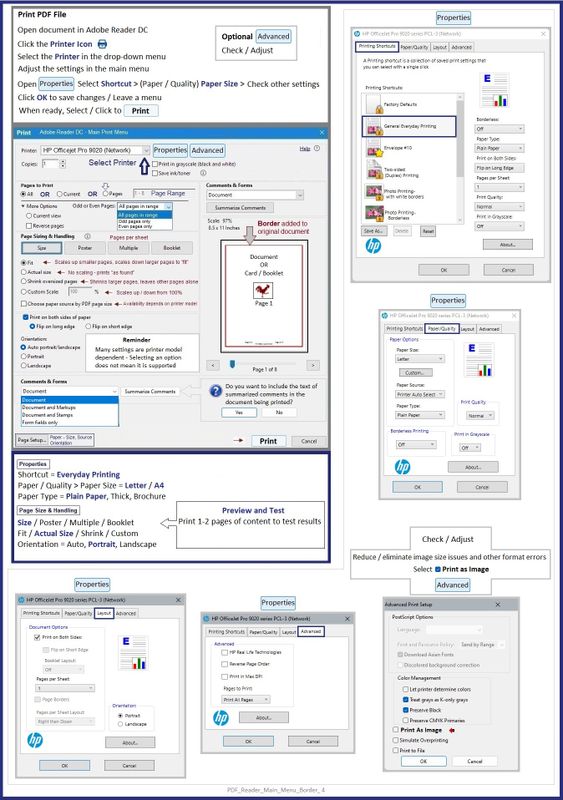
Print PDF in Adobe Reader DC 


 Print PDF - Size or Poster


Open the PDF document in Adobe Reader DC 

Click the Print icon

Open Properties

Set Shortcut to Everyday Printing or similar (Plain paper printing, single sided)

Select your Paper Size

Click OK to save change(s) and Exit the Properties menu

Main print menu

Page Sizing & Handling

If printing at 100% or smaller, and the content fits on the paper, Page Sizing & Handling = Size

Then select Actual, Fit / Shrink to fit, percentage (wording varies)

OR

If printing “larger than 100%”, or the content size requires it, Page Sizing & Handling = Poster

Poster Printing - Notes

  • If the file is smaller than the paper size and you need it larger, increase the Tile Size
  • If the file is already larger than the paper size, it will be divided into Tiled sheets needed to print the file
  • Enter an "overlap" and whether you want the "cut marks" included

When ready, click to Print


Example - PDF - At Size

PDF_Reader_Main_Menu_Border_4PDF_Reader_Main_Menu_Border_4


Example - PDF - Poster - Print at size or larger size on several sheets of paper

PDF_Document_Poster_CAD_3PDF_Document_Poster_CAD_3


=+=+=+=+=+=+=+=+=+=+=+=+=+=

References / Resources


Technology Tips Video Gallery from our HP Expert greenturtle

 Technology Tips YouTube Video Help for Printers

and

 Technology Tips DeskJet 2700


HP Printer Home Page - References and Resources

Learn about your Printer - Solve Problems

“Things that are your printer”

When the website support page opens, Select (as available) a Category > Topic > Subtopic

NOTE: Content depends on device type and Operating System

Categories: Alerts, Troubleshooting, Ink & Paper, HP Software / Drivers / Firmware Updates , Setup & User Guides, Product Specifications, Account & Registration, Warranty & Repair

Open

HP DeskJet 2755 All-in-One Printer  


Thank you for participating in the HP Community --

People who own, use, and support HP devices.

Click Yes to say Thank You

Question / Concern Answered, Click my Post "Accept as Solution"


Dragon-Fur

† The opinions expressed above are the personal opinions of the authors, not of HP. By using this site, you accept the <a href="https://www8.hp.com/us/en/terms-of-use.html" class="udrlinesmall">Terms of Use</a> and <a href="/t5/custom/page/page-id/hp.rulespage" class="udrlinesmall"> Rules of Participation</a>.