-
×InformationNeed Windows 11 help?Check documents on compatibility, FAQs, upgrade information and available fixes.
Windows 11 Support Center. -

-
×InformationNeed Windows 11 help?Check documents on compatibility, FAQs, upgrade information and available fixes.
Windows 11 Support Center. -
- HP Community
- Printers
- Printing Errors or Lights & Stuck Print Jobs
- Re: Printing issue

Create an account on the HP Community to personalize your profile and ask a question
12-09-2017 07:33 PM
Trying to print but keep getting, "The photo tray is blocked. Please adjust the tray and try again."
I am not trying to print from the photo tray just the main tray. Two loud noises and then the error.
Anyone have any advice? I do not have paper stuck in the printer. The photo tray seems to be like new and in place.
Thank you.
Solved! Go to Solution.
Accepted Solutions
12-11-2017 08:06 AM
Welcome to the HP Forums 🙂
I would like to take a moment and thank you for using this forum, it is a great place to find answers.
As I understand there are issues with printing from the photo tray,
No worries, as I'll be glad to help you, that said, I'll need a few more details to dissect your concern & provide an accurate solution:
Have you ensured the photo tray is seated correctly?
While you respond to that, here's what you need to do:
Step 1: Make sure the photo tray is seated correctly
This error can occur if the printer trays are installed incorrectly. Make sure the printer is located on a flat surface, then make sure the photo tray moves smoothly within the paper tray guides.
-
Make sure the printer is positioned on a flat surface.
-
Push in the output tray extender.
-
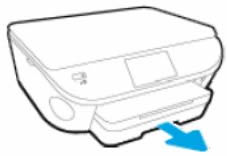
Pull out the input tray, but do not remove it.
Figure : Pull out the input tray

-
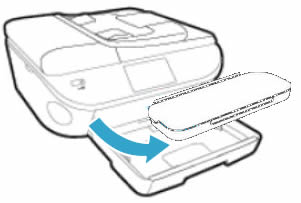
Remove the output tray.
Figure : Remove the output tray

-
Make sure the photo tray is seated correctly, and that the photo tray guide tabs (grey) are sliding beneath the main tray guides (black) on both the left and right side of the input tray.
Figure : Make sure the photo tray is seated correctly

CLICK HERE FOR MORE STEPS AND INSTRUCTIONS.
(By the end of this article all the issues should be resolved)
If the issue persists, please Contact HP to set up a repair/replacement order:
HP Support can be reached by clicking on the following link:
* Open link: www.hp.com/contacthp/
* Enter Product number or select to auto detect
* Scroll down to "Still need help? Complete the form to select your contact options"
* Scroll down and click on HP contact options - click on Get a Case & phone number.
They will be happy to assist you immediately.
If the unit is under warranty repair services under the manufacturer's warranty will be free of charge.
If you would like to thank me for my efforts to help you,
feel free to give me a virtual high-five by clicking the 'Thumbs Up' icon below,
Followed by clicking on the "Accept as solution".
Have a great day!
Riddle_Decipher
I am an HP Employee
Learning is a journey, not a destination.
Let's keep asking questions and growing together.
12-11-2017 08:06 AM
Welcome to the HP Forums 🙂
I would like to take a moment and thank you for using this forum, it is a great place to find answers.
As I understand there are issues with printing from the photo tray,
No worries, as I'll be glad to help you, that said, I'll need a few more details to dissect your concern & provide an accurate solution:
Have you ensured the photo tray is seated correctly?
While you respond to that, here's what you need to do:
Step 1: Make sure the photo tray is seated correctly
This error can occur if the printer trays are installed incorrectly. Make sure the printer is located on a flat surface, then make sure the photo tray moves smoothly within the paper tray guides.
-
Make sure the printer is positioned on a flat surface.
-
Push in the output tray extender.
-
Pull out the input tray, but do not remove it.
Figure : Pull out the input tray

-
Remove the output tray.
Figure : Remove the output tray

-
Make sure the photo tray is seated correctly, and that the photo tray guide tabs (grey) are sliding beneath the main tray guides (black) on both the left and right side of the input tray.
Figure : Make sure the photo tray is seated correctly

CLICK HERE FOR MORE STEPS AND INSTRUCTIONS.
(By the end of this article all the issues should be resolved)
If the issue persists, please Contact HP to set up a repair/replacement order:
HP Support can be reached by clicking on the following link:
* Open link: www.hp.com/contacthp/
* Enter Product number or select to auto detect
* Scroll down to "Still need help? Complete the form to select your contact options"
* Scroll down and click on HP contact options - click on Get a Case & phone number.
They will be happy to assist you immediately.
If the unit is under warranty repair services under the manufacturer's warranty will be free of charge.
If you would like to thank me for my efforts to help you,
feel free to give me a virtual high-five by clicking the 'Thumbs Up' icon below,
Followed by clicking on the "Accept as solution".
Have a great day!
Riddle_Decipher
I am an HP Employee
Learning is a journey, not a destination.
Let's keep asking questions and growing together.
12-11-2017 09:47 AM
Thank you for the update,
I appreciate your time and efforts,
I'm glad I could contribute towards identifying and leading you towards the solution for this concern.
Thanks for taking the time to let the community know that you accept my suggestions,
You've been great to work with and it has been a genuine pleasure interacting with you.
I hope both you and your product works great and remain healthy for a long time 😉
To simply say thanks for my efforts to assist you, please click the "Thumbs Up" button to give me a Kudos.
Take care now and do have a fabulous week ahead. 🙂
Riddle_Decipher
I am an HP Employee
Learning is a journey, not a destination.
Let's keep asking questions and growing together.