• ×
    Information
    Need Windows 11 help?
    Check documents on compatibility, FAQs, upgrade information and available fixes.
    Windows 11 Support Center.
  • post a message
  • ×
    Information
    Need Windows 11 help?
    Check documents on compatibility, FAQs, upgrade information and available fixes.
    Windows 11 Support Center.
  • post a message
Guidelines
Here is the solution for Blue screen error 83C0000B on HP OfficeJet Pro 8010e, 9020e Printer Series: Click here to view.
Check some of the most frequent questions about Instant Ink: HP INSTANT INK, HP+ PLANS: INK AND TONER.


Check out our Black or Color Ink Not Printing, Other Print Quality Issues info about: Print quality and Cartridge Issues.
HP Recommended
HP 6520
macOS 10.13 High Sierra

very recently I began getting server connection errors when trying to scan from HP6520 to my email or Mac desktop.  Finally decided to "remove web services" and re-connect.  Doing so reset everything.  Now, when select "scan" and then "email", scanner briefly attempts to connect to the internet but do-loops back to the "scan" page.  doesn't allow me to add an email.  when I try to scan to the computer I get an error message saying it cannot connect.  Ironically, I am able to scan when initiating it from the computer.  Can't figure out next steps.  Any suggestions?

1 REPLY 1
HP Recommended

@Suken, Welcome to HP Support Community!


I see that you have issues with scanning, let us try to isolate and resolve the issue-


Update the printer firmware

Download available firmware updates from the HP website

With the printer on and connected to the computer, go to HP Customer Support - Software and Driver Downloads, and then identify your printer. Look for and install any available firmware updates. Refer to the document HP Printers - Updating or Upgrading Printer Firmware


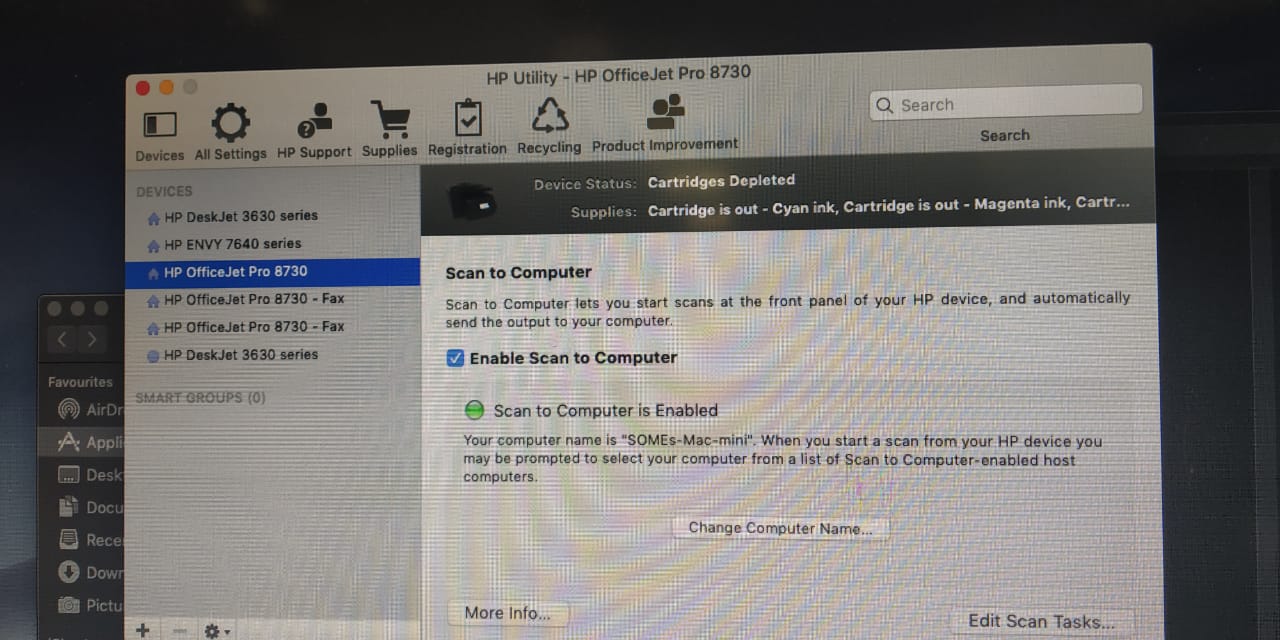
Is scan to computer enabled on your computer?


Download the HP Utility for Mac from here.


Try following the steps below-


Open the HP Utility Folder and go to Scan to Computer


Try Scanning.


With regards to scan to email, since you have already tried removing and adding web services, we can try assigning static IP to the printer. The server connection error could be due to connectivity issues. Here is how you do it-


The steps on how to set a manual IP address can be found here.

For the DNS servers please use 8.8.8.8 for the Manual Preferred DNS Server and 8.8.4.4 for the Alternate DNS server. These are Google’s public DNS servers


Static IP needs to be set up outside the DHCP range- Since the default DHCP address range is between 100 and 149, you'll want to avoid all of the addresses between 192.168.1.100 and 192.168.1.149 when you're assigning static IP addresses. That leaves the ranges from 2-99 and from 150-254 wide open, which is usually plenty for most home networks.


Try to scan to email.


Hope this helps! Keep me posted. 


Please click “Accepted Solution” if you feel my post solved your issue, it will help others find the solution. Click the “Kudos/Thumbs Up" on the bottom right to say “Thanks” for helping!


TEJ1602
I am an HP Employee

† The opinions expressed above are the personal opinions of the authors, not of HP. By using this site, you accept the <a href="https://www8.hp.com/us/en/terms-of-use.html" class="udrlinesmall">Terms of Use</a> and <a href="/t5/custom/page/page-id/hp.rulespage" class="udrlinesmall"> Rules of Participation</a>.