-
×InformationNeed Windows 11 help?Check documents on compatibility, FAQs, upgrade information and available fixes.
Windows 11 Support Center. -

-
×InformationNeed Windows 11 help?Check documents on compatibility, FAQs, upgrade information and available fixes.
Windows 11 Support Center. -
- HP Community
- Printers
- Printing Errors or Lights & Stuck Print Jobs
- Re: paper jam

Create an account on the HP Community to personalize your profile and ask a question
10-27-2019 03:45 PM
Welcome to the HP Support Community.
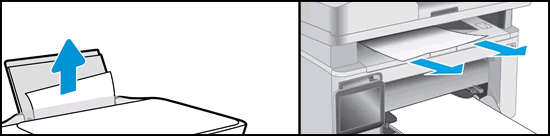
Clear a jam from the outside of the printer.
Clear a paper jam from an external input tray, output tray, or automatic document feeder (ADF).
-
Remove jammed paper from the following areas.
-
Input and output paper trays
Look inside areas where the paper enters and exits the printer, and then remove any jammed paper.

-
ADF
Open the ADF cover, and then remove any jammed paper.

-
-
Try to print. If the issue persists, continue to the next step.
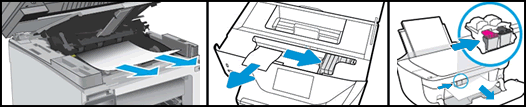
Step 2: Clear a jam from the inside of the printer
Paper jams can occur inside the printer. Use a flashlight to check each area for torn paper or other debris.
-
Turn off the printer.
-
Disconnect the power cord and any other cable.
WARNING:
You must disconnect the power cord before reaching inside the printer to avoid risk of injuries or electric shock.
-
Remove jammed paper from the following areas.
-
Ink or toner cartridge access area
Open the access door, move the carriage if necessary, and then remove any jammed paper. On some Laserjet printers, you might need to remove the toner cartridge and/or imaging drum to access the paper jam.

-
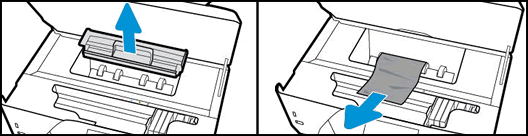
Under the paper path cover
If your printer has a paper path cover behind the carriage, remove the cover, and then remove any jammed paper.

-
Input tray
Pull out the input tray, and then remove any jammed paper.

-
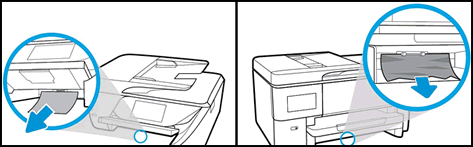
Bottom cleanout door
If your printer has a bottom cleanout door, carefully lift the printer and look under it, and then remove any jammed paper from the bottom cleanout.

-
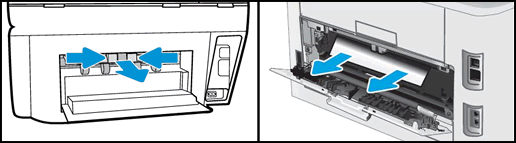
Rear access door
Remove the paper path cover if necessary.

-
-
Replace any parts that were removed, and close any open doors.
-
Reconnect the power cord, and other cables that were disconnected.
-
Turn on the printer.
Let me know if this helps.
If the information I've provided was helpful, give us some reinforcement by clicking the Accepted Solution button, that'll help us and others see that we've got the answers!
Thanks!
Have a great day!
I am an HP Employee
10-30-2019 02:08 PM
I recommend you to contact the HP Support Team as this could be a hardware issue.
Link: www.hp.com/contacthp/
Note: Select the country accordingly to get the contact details for support.
If the information I've provided was helpful, give us some reinforcement by clicking the Accepted Solution button, that'll help us and others see that we've got the answers!
Thanks!
Have a great day!
I am an HP Employee