• ×
    Information
    Need Windows 11 help?
    Check documents on compatibility, FAQs, upgrade information and available fixes.
    Windows 11 Support Center.
  • post a message
  • ×
    Information
    Need Windows 11 help?
    Check documents on compatibility, FAQs, upgrade information and available fixes.
    Windows 11 Support Center.
  • post a message
Guidelines
Here is the solution for Blue screen error 83C0000B on HP OfficeJet Pro 8010e, 9020e Printer Series: Click here to view.
Check some of the most frequent questions about Instant Ink: HP INSTANT INK, HP+ PLANS: INK AND TONER.


Check out our Black or Color Ink Not Printing, Other Print Quality Issues info about: Print quality and Cartridge Issues.
HP Recommended

HP5610 paper jam cleared from the back door but error msg on screen will not clear.  I've tried all the basic trouble shooting suggestions.

3 REPLIES 3
HP Recommended

@cpokomo


Welcome to the HP Support Community.


Clear a jam from the outside of the printer.


Clear a paper jam from an external input tray, output tray, or automatic document feeder (ADF).

  1. Remove jammed paper from the following areas.

    • Input and output paper trays

      Look inside areas where the paper enters and exits the printer, and then remove any jammed paper.

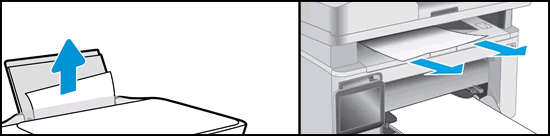
      Example of clearing a jam from the paper trays

    • ADF

      Open the ADF cover, and then remove any jammed paper.

      Example of clearing a jam from the ADF

  2. Try to print. If the issue persists, continue to the next step.

Step 2: Clear a jam from the inside of the printer

Paper jams can occur inside the printer. Use a flashlight to check each area for torn paper or other debris.

  1. Turn off the printer.

  2. Disconnect the power cord and any other cable.

       WARNING: 

    You must disconnect the power cord before reaching inside the printer to avoid risk of injuries or electric shock.

  3. Remove jammed paper from the following areas.

    • Ink or toner cartridge access area

      Open the access door, move the carriage if necessary, and then remove any jammed paper. On some Laserjet printers, you might need to remove the toner cartridge and/or imaging drum to access the paper jam.

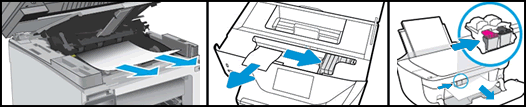
      Examples of clearing a jam in the ink cartridge access area

    • Under the paper path cover

      If your printer has a paper path cover behind the carriage, remove the cover, and then remove any jammed paper.

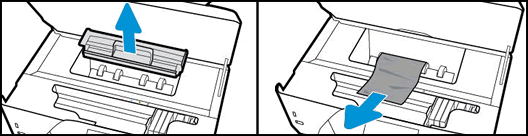
      Example of removing the paper path cover and clearing a jam

    • Input tray

      Pull out the input tray, and then remove any jammed paper.

      Example of removing a jam from the input tray area

    • Bottom cleanout door

      If your printer has a bottom cleanout door, carefully lift the printer and look under it, and then remove any jammed paper from the bottom cleanout.

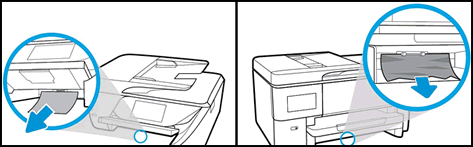
      Example of clearing jam from the bottom cleanout door

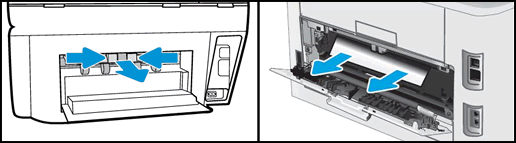
    • Rear access door

      Remove the paper path cover if necessary.

      Example of removing the paper path cover and clearing a rear door jam

  4. Replace any parts that were removed, and close any open doors.

  5. Reconnect the power cord, and other cables that were disconnected.

  6. Turn on the printer.

Let me know if this helps.


If the information I've provided was helpful, give us some reinforcement by clicking the Accepted Solution button, that'll help us and others see that we've got the answers!


Thanks!

Have a great day!


I am an HP Employee

HP Recommended

I believe this is a false paper jam. I’ve already pursued all of the obvious remedies. 

HP Recommended

I recommend you to contact the HP Support Team as this could be a hardware issue.


Link: www.hp.com/contacthp/


Note:  Select the country accordingly to get the contact details for support.


If the information I've provided was helpful, give us some reinforcement by clicking the Accepted Solution button, that'll help us and others see that we've got the answers!


Thanks!

Have a great day!


I am an HP Employee

† The opinions expressed above are the personal opinions of the authors, not of HP. By using this site, you accept the <a href="https://www8.hp.com/us/en/terms-of-use.html" class="udrlinesmall">Terms of Use</a> and <a href="/t5/custom/page/page-id/hp.rulespage" class="udrlinesmall"> Rules of Participation</a>.